
Send SMS from a HubSpot workflow
Add the Send SMS via Pepperwire action to any contact-based workflow: reminders, follow-ups, and review requests that send themselves.
Last updated August 11, 2026
HubSpot workflows can send email, create tasks, and update properties. With this app installed they can also send a text message — a real action in the workflow editor, next to all the others.
This guide builds one from scratch.
What you need
- A HubSpot plan with workflows. Any Professional or Enterprise hub. This is HubSpot's gate on workflows generally, not something we add.
- Twilio connected and at least one number turned on. If you haven't done that yet, start with the setup guide.
- An active trial or subscription. When a trial expires the action stops sending and says so in the workflow's action log.
Sending SMS from a workflow without an app usually means a custom code or webhook action, and both of those need Operations Hub Professional. This action is a normal marketplace app action, so any Professional-tier hub with workflows can use it.
Build the workflow
In HubSpot, go to Automation → Workflows and open an existing contact-based workflow, or click Create workflow and choose Contact-based.
The action only appears in contact-based workflows. It texts a contact, so it needs a contact to text — a deal-based or ticket-based workflow has no phone number to reach for.
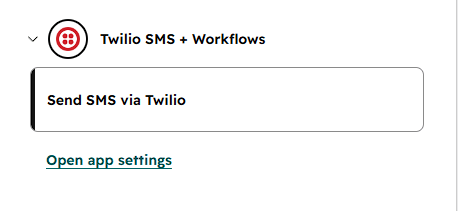
Set your enrolment trigger as you normally would, then click the + to add an action. In the action list, find Send SMS via Pepperwire.
Fill in the action
The action has one required field and two optional ones.
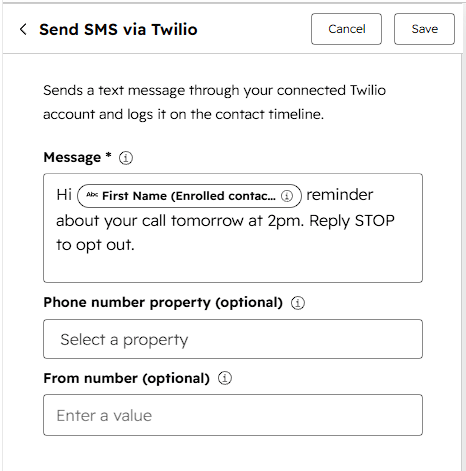
Message — the text to send. This is required.
Phone number property — which contact property holds the number to text. Leave it empty and we use the contact's mobile phone number, falling back to their phone number. Set it if the number you want lives somewhere else, like a custom "SMS number" property.
From number — which of your Twilio numbers sends the text. Leave it
empty and we use your default sending number, which you set on the Phone
numbers page in the Pepperwire dashboard. If you do fill it in, type the
number in full international format — +14155550123, not (415) 555-0123 —
and make sure it's one of the numbers you've enabled. To send from a short
code, type its digits exactly as they appear on the Phone numbers page —
99990, with no + and no country code. A sender that isn't enabled will
fail the action rather than falling back silently, because silently texting
from the wrong number is worse than not texting.
The message field sends exactly what you type, to every contact enrolled in the workflow. It does not currently substitute HubSpot personalization tokens, so typing a token name will send the token name as text.
Where you need the message to vary, branch the workflow: an if/then branch on the property you care about, with a separate Send SMS action on each side, gives each group its own wording.
Turn the workflow on when you're ready. Test it first on a small enrolment — a single test contact whose phone number is your own is the safest way to see exactly what your customers will receive.
What happens when it runs
For each contact that reaches the action:
- We look up the phone number, from the property you chose or from the contact's mobile/phone number.
- We send the text through your Twilio account, from your chosen or default number.
- We write the message to that contact's timeline, so it sits alongside their emails and calls.
- Twilio reports back whether the message was delivered, and the status appears on the Messages page in the Pepperwire dashboard.
When something fails
HubSpot shows each action's result in the workflow's History tab. Click into an enrolment and you'll see whether the SMS step succeeded, and if not, the reason.
A failure stops that one contact's step. It doesn't stop the workflow, and it doesn't stop other contacts.
| What the action log says | What it means | What to do |
|---|---|---|
| The contact has no usable phone number | The property was empty, or the number isn't in international format | Add a phone number to the contact starting with the country code, like +14155550123 |
| No Twilio account connected | The Twilio connection was removed or its API key stopped working | Reconnect Twilio in the Pepperwire dashboard |
| No phone number is enabled in Pepperwire | Every number is switched off | Turn one on under Phone numbers |
| A number isn't one of your enabled Twilio senders | The From number you typed doesn't match an enabled number or short code | Check the spelling, or leave the field empty to use the default. Short codes are digits only, with no + |
| Twilio SMS + Workflows isn't connected to this HubSpot portal | The app was uninstalled, or its access was revoked | Reinstall from the marketplace, or reconnect from the dashboard |
| Your Pepperwire trial has ended | Sending is paused | Pick a plan on the Billing page |
| Twilio: some message | Twilio itself refused the message | See troubleshooting — usually A2P registration, an opt-out, or a trial-account limit |
Ideas that work well
These are the ones customers set up first, and they're a decent starting point:
- Appointment reminders. Trigger on a meeting booked for tomorrow; text the time and place.
- No-show follow-up. Trigger when a meeting outcome is set to "no show"; text a rebooking link. Texts get read where the follow-up email doesn't.
- Review requests. Trigger when a deal moves to closed-won, with a delay of a few days.
- Quote or renewal nudges. Trigger a few days before an expiry date.
- Hand-raise routing. Text a customer to confirm you've received their form submission and that someone is on the way.
Automated marketing texts to US numbers need prior express written consent, and every message must honour STOP. This is carrier and legal requirement, not a suggestion — and it applies to you as the sender, not to us. The A2P 10DLC guide covers what carriers expect to see.