
Two-way texting in the Inbox and Help Desk
Route a Twilio number into your HubSpot shared inbox so incoming texts become conversations your team can assign, reply to, and close.
Last updated August 11, 2026
Connect a Twilio number to a HubSpot inbox and text messages start behaving like email: a customer texts your business number, a conversation appears in the inbox, someone claims it, replies, and closes it.
This step is optional. Read the next section before you decide.
Do you actually need this?
Without it, texting still works. You can text from a contact record, workflows can send messages, and every message in both directions is written to the contact's timeline. What you don't get is any notification when somebody replies — you'd only see it by opening the contact.
With it, incoming texts land in HubSpot's shared inbox next to email and chat. You get unread counts, assignment to a rep, internal comments, and inline replies that go back out as SMS.
The rule of thumb: connect it if a team works a queue and replies need to be picked up quickly. Skip it if you work contact by contact and mostly text outbound.
What you need
- Sales Hub or Service Hub Professional or Enterprise. HubSpot's shared Inbox and Help Desk are gated on those plans. If your account doesn't have one, the page in Pepperwire will tell you plainly rather than failing — and everything else in the app still works.
- A phone number already turned on in Pepperwire. See the setup guide. It has to be a phone number — short codes are send only, so they aren't listed here.
Inbox or Help Desk?
HubSpot has two places conversations can live, and you'll be asked to choose.
Inbox is the shared inbox most teams use — a list of conversations, each assignable to a person. Good for sales and general enquiries.
Help desk is Service Hub's ticket-based workspace. Every conversation becomes a ticket with a status and a pipeline. Good for support teams who already work in tickets.
Both work identically as far as texting goes. Pick where your team already spends its day. You can move a number later by disconnecting it and connecting it again to the other destination.
Connect a number
In the Pepperwire dashboard, go to HubSpot inbox. Your enabled numbers are listed, along with the inboxes HubSpot says you have.
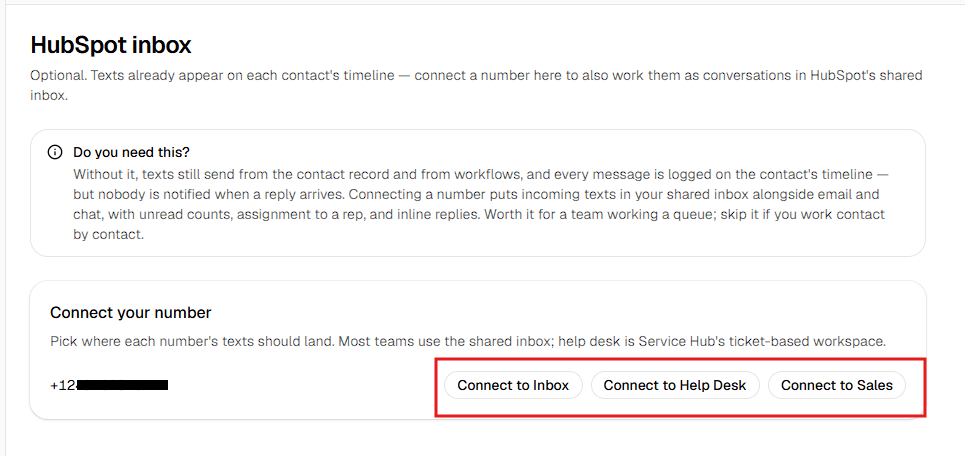
Click Connect next to the number you want to route. If you have more than one destination, the button names which one — Connect to Sales Inbox, for example.
That's the whole setup. There is no channel to create in HubSpot first and no webhook to paste anywhere.
A number routes to exactly one inbox. To send different numbers to different teams — sales to one, support to another — connect each number separately.
How conversations work
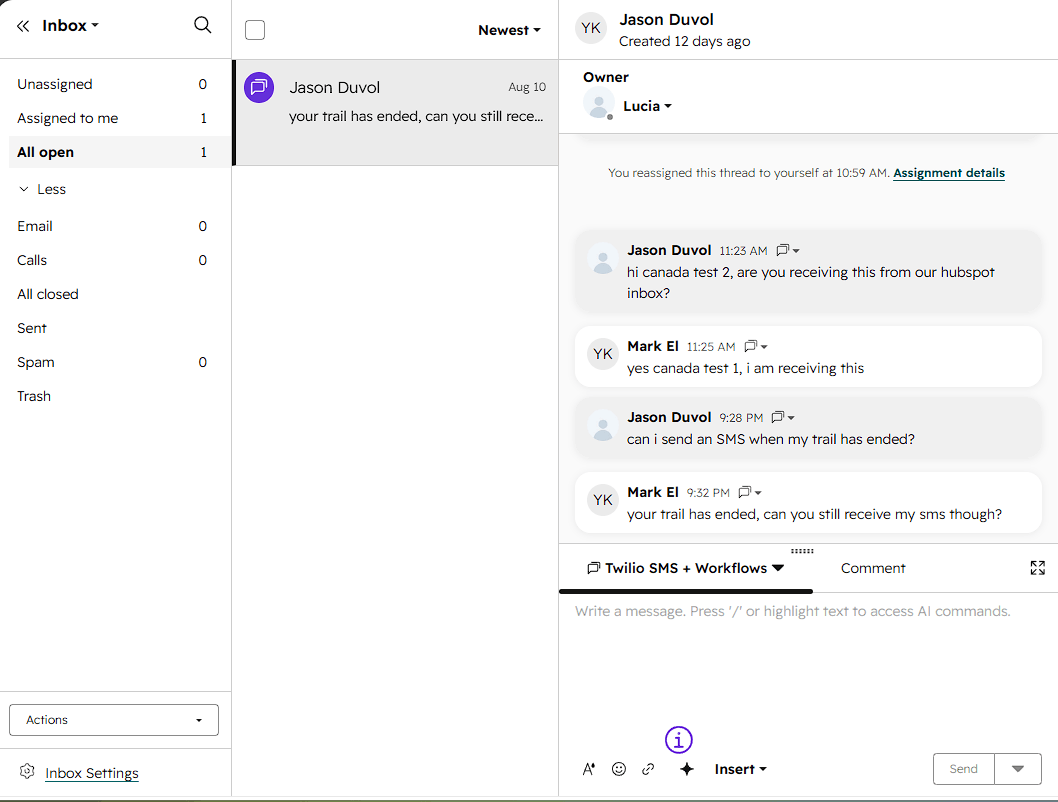
When a text arrives at a connected number:
- HubSpot opens a conversation, threaded by the sender's phone number. Every later text from that person joins the same thread.
- HubSpot matches the sender to a contact. If the number matches nobody, the conversation opens from an unknown visitor — you can reply straight away and associate it with a contact when you know who it is.
- Your team replies in the conversation window like any other channel, and the reply goes out as SMS from your Twilio number.
Assignment, internal comments, and closing all work exactly as they do for email — this is a real HubSpot channel, not a panel bolted on the side.
When a number is connected to an inbox, HubSpot writes the conversation and its timeline entries itself. We deliberately don't also log the message separately, so nothing appears twice on the contact's timeline. Turn the inbox connection off and we go back to logging inbound messages ourselves.
Disconnect a number
On the same HubSpot inbox page, click Disconnect next to a connected number.
- New texts to that number stop opening conversations.
- Conversations already in your inbox stay there and stay readable.
- The number keeps working everywhere else — workflows and contact-record sends are unaffected.
When something goes wrong
| What you see | What it means | What to do |
|---|---|---|
| "No shared inbox on this HubSpot plan" | Your plan doesn't include Inbox or Help Desk | Everything else still works. Upgrade to Sales or Service Hub Professional if you want this |
| "This HubSpot plan doesn't include the shared inbox" | Same as above, seen while connecting | As above |
| "That number is already attached to a channel in HubSpot" | A previous connection left something behind on HubSpot's side | In HubSpot go to Settings → Inbox → Channels, remove the leftover SMS channel for that number, then connect again |
| "Your HubSpot connection has expired" | The app's access was revoked or expired | Reconnect from the Overview page in the dashboard |
| "Channel not registered" | A configuration problem on our side, not yours | Email support@pepperwire.app — we'll fix it |
Texts arriving in the inbox but replies not going out? That's usually a Twilio-side rejection rather than an inbox problem — troubleshooting covers it.